Measure Before You Optimize
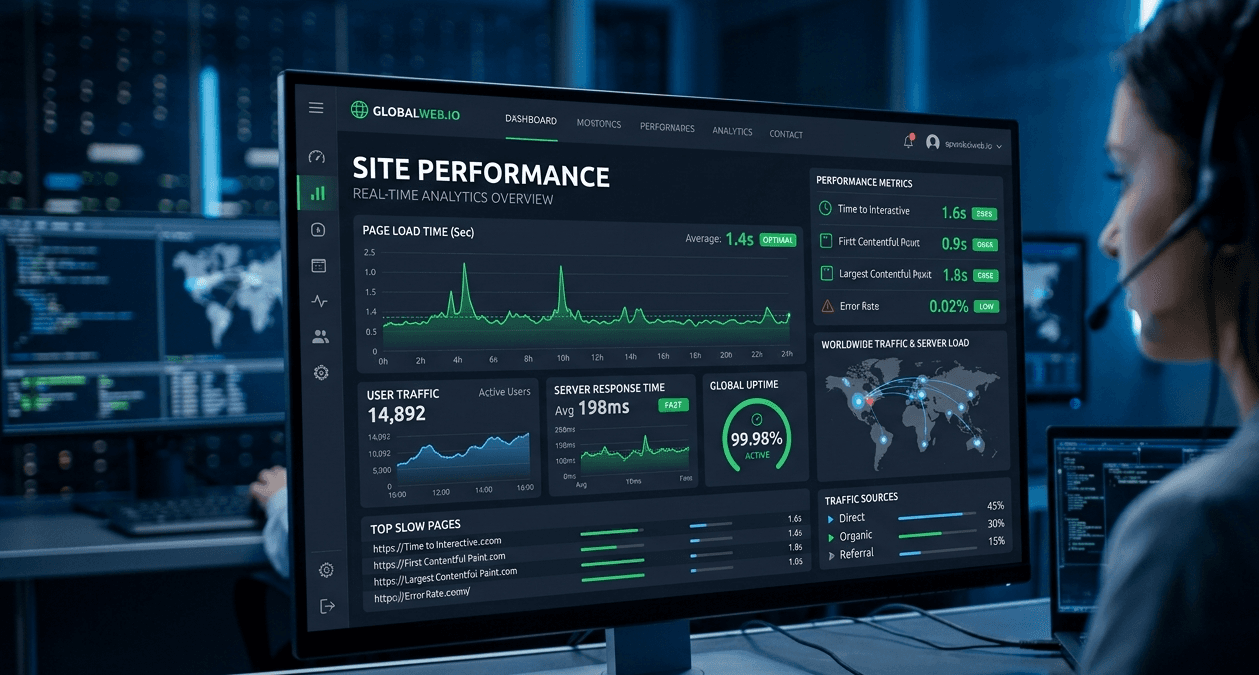
Before installing anything, get a baseline. Run your site through PageSpeed Insights and look at two different things it shows you:
- Field data (Core Web Vitals) — what real Chrome users experienced over the last 28 days. This is the data Google uses when evaluating Core Web Vitals as part of its ranking systems.
- Lab data (Lighthouse score) — a simulated test on a throttled connection. Useful for diagnosis, but the number itself is not a ranking factor.
The three metrics that matter most: LCP (Largest Contentful Paint — how fast your main content appears, target under 2.5s), INP (Interaction to Next Paint — how fast the page responds to clicks, target under 200ms), and CLS (Cumulative Layout Shift — how much the layout jumps around, target under 0.1).
Then open the “Reduce the impact of third-party code” section in the report. On many WordPress business sites, Google Tag Manager is one of the largest third-party contributors.
The Plugins That Actually Move the Needle
1. Caching & Optimization: WP Rocket (or LiteSpeed Cache)
If you install only one performance plugin, make it WP Rocket. Out of the box it gives you page caching, and it helps configure browser caching and compression where the hosting environment supports it — and with a few checkboxes you add:
- Remove Unused CSS — generates a minimal stylesheet per page. Frequently one of the largest Lighthouse improvements on theme-heavy or page-builder sites.
- Delay JavaScript Execution — postpones non-critical scripts until the user interacts with the page. This is the feature that neutralizes most third-party script damage.
- Lazy loading for images and iframes, with exclusions for above-the-fold content.
Two situations change the recommendation. If your host runs a LiteSpeed server (many budget and mid-range hosts do), LiteSpeed Cache is free and arguably more powerful, because it caches at the server level instead of in PHP. And if you want a modern WP Rocket alternative built specifically around Core Web Vitals, FlyingPress is excellent. What I'd avoid: running W3 Total Cache, Autoptimize, and a host-provided cache simultaneously — overlapping optimization plugins fight each other and break sites more often than they speed them up. Pick one stack.
A word on Hummingbird (WPMU DEV), since it often comes pre-installed with agency hosting: the free version covers page caching and minification but lacks the two features that produce the biggest gains on modern audits. Hummingbird Pro does add both — Delay JavaScript Execution and automatic Critical CSS generation — so if a client already pays for the WPMU DEV bundle, it's a capable choice. Just never run it alongside WP Rocket or LiteSpeed Cache. That's been the typical setup in my own work, too — most of the client projects I've worked on came with Hummingbird Pro already installed as part of the WPMU DEV bundle, so the job was usually configuring it properly rather than replacing it.
2. Image Optimization: ShortPixel or Imagify
Oversized images are the most common cause of bad LCP. ShortPixel or Imagify will compress your media library and serve WebP/AVIF versions automatically — often a dramatic size reduction, sometimes 50% or more, depending on the image type and how well the originals were optimized. Whichever you choose, also make sure your hero image is excluded from lazy loading and, ideally, preloaded. Lazy-loading the LCP image is one of the most common self-inflicted wounds I see.
Smush (and Smush Pro) is the popular alternative here, and it's serviceable — but the free version only does lossless compression, which saves far less than ShortPixel's or Imagify's smart lossy modes, and WebP conversion sits behind the Pro subscription. If a client already pays for the WPMU DEV bundle, Smush Pro does the job; I wouldn't buy it standalone. As with Hummingbird, that was the usual setup on the client projects I've worked on — Smush Pro came preinstalled with the WPMU DEV bundle, so it was a matter of configuring it well rather than replacing it.
3. Bloat Removal: Perfmatters or Asset CleanUp
WordPress plugins love loading their scripts everywhere. Your contact form plugin loads CSS and JS on every page. Your slider plugin loads on pages with no slider. Perfmatters or Asset CleanUp let you disable scripts per page — so the form plugin only loads on the contact page, and WooCommerce assets only load on shop pages. Perfmatters also disables WordPress's own baggage: emoji scripts, embeds, dashicons for logged-out users, and an overly chatty Heartbeat API.
While you're in there, audit your fonts. Loading three font families with six weights each can easily add more render-blocking requests than the rest of your theme combined, and on many modern audits fonts hurt LCP almost as much as images. Self-hosting only the weights you actually use — Perfmatters can host Google Fonts locally for you — often improves LCP more than another optimization plugin would.
4. Database Cleanup: WP-Optimize
Years of post revisions, expired transients, and accumulated junk data can gradually increase database overhead and slow some queries. WP-Optimize on a weekly schedule keeps the database lean. Not a dramatic Lighthouse win, but it keeps the time-to-first-byte from creeping up as the site ages.
One caveat before moving on: no optimization plugin can fully compensate for slow hosting, an overloaded database, or poorly written custom code. Performance starts with infrastructure — that entire stack on cheap, oversold shared hosting can still be slower than an unoptimized site on a fast VPS or managed WordPress host. If your TTFB stays high after page caching is enabled, investigate hosting, database performance, and custom code before adding more optimization plugins.
Why Google Tag Manager Lowers Your Score
Here's the part that surprises clients: you can do everything above perfectly and still score in the 60s — because of the marketing stack.
Google Tag Manager itself is a small script. The problem is what it does: it's a container that loads other scripts — Google Analytics, ads pixels, Facebook/Meta pixel, Hotjar, LinkedIn Insight, chat widgets. Every tag someone has ever added through the GTM interface ships to every visitor, and marketing teams add tags far more often than they remove them. I've audited sites whose GTM container had grown to 20+ tags over five years, several of them tracking campaigns that ended years ago.
The damage shows up in two specific metrics:
- Total Blocking Time in Lighthouse — and poorer INP for real users. Each tag executes JavaScript on the browser's main thread — the same thread that handles clicks and scrolling. A GTM container loaded with analytics, pixels, heatmaps, chat widgets, and marketing scripts can add over a second of main-thread blocking on a mid-range phone, which Lighthouse punishes harshly.
- Network contention during load. GTM fires early, so its tags compete with your hero image and CSS for bandwidth at exactly the moment LCP is being measured.
What actually works:
- Audit the container. Open GTM and delete every tag tied to an ended campaign or a tool nobody logs into anymore. This is free and often removes half the weight.
- Delay it. WP Rocket's “Delay JavaScript Execution” (or FlyingPress's equivalent) holds GTM until the first user interaction — scroll, tap, or mouse move. This often improves Lighthouse and real-user responsiveness, because non-critical scripts are deferred until after the initial interaction. The trade-off: delaying GTM can reduce analytics fidelity, since visitors who leave before interacting may never trigger tracking scripts.
- Server-side tagging for bigger sites — GTM's server container significantly reduces the amount of third-party processing happening in the visitor's browser (some client-side collection still remains). More setup (it needs its own hosting), but for tag-heavy organizations it's often the most scalable long-term solution.
The root problem is always the same: third-party JavaScript that loads before your content needs it. The strategy is always the same too — remove what you can, delay what you can't, and replace the heaviest offenders with lighter equivalents.
A Realistic Order of Operations
If you're starting from a slow site, this is the sequence I'd follow — each step builds on the previous one:
- Run PageSpeed Insights and save the baseline report.
- Install one caching/optimization plugin (WP Rocket or LiteSpeed Cache) and enable page caching, Remove Unused CSS, and lazy loading.
- Compress the media library and enable WebP with ShortPixel or Imagify; preload the hero image.
- Audit the GTM container, delete dead tags, then delay GTM with the caching plugin's delayed-JS feature.
- Use Perfmatters/Asset CleanUp to stop plugins from loading where they aren't used.
On many business sites, this sequence produces substantial improvements in Lighthouse and Core Web Vitals — and more importantly, it improves the field metrics that actually affect rankings, not just the lab number.
Frequently Asked Questions
What is the best caching plugin for WordPress?
WP Rocket is the best all-in-one option for most sites — it handles page caching, CSS/JS optimization, lazy loading, and delayed JavaScript execution out of the box. If your host runs a LiteSpeed server, LiteSpeed Cache is free and just as powerful. FlyingPress is a strong modern alternative focused specifically on Core Web Vitals.
Why does Google Tag Manager lower my PageSpeed score?
GTM is a container that loads other scripts — analytics, ad pixels, heatmaps, chat widgets. Each tag adds third-party JavaScript that blocks the browser's main thread, hurting Total Blocking Time and INP. The container itself is small, but one with 15–20 accumulated tags can add over a second of main-thread blocking on mobile.
How do I optimize images on a WordPress site?
Use ShortPixel or Imagify — or Smush Pro if the site already runs on the WPMU DEV bundle — to compress images and convert them to WebP or AVIF automatically. Keep lazy loading on for below-the-fold images, but exclude (and ideally preload) your hero image so it doesn't hurt Largest Contentful Paint. At larger scales, image CDNs like Cloudinary, Bunny.net, or ImageKit can outperform plugin-based optimization, because resizing and format conversion happen on demand at the edge.
Performance Is Maintenance, Not a One-Time Fix
The plugins do the heavy lifting, but the score you earn today erodes as new tags get added to GTM, new plugins enqueue their scripts sitewide, and the media library fills with uncompressed uploads. Re-run PageSpeed Insights after every significant change to the site, and audit the GTM container twice a year.
And keep the priorities straight: the goal isn't a vanity 100 in Lighthouse — it's green field Core Web Vitals from real visitors. A site that loads its content in under two seconds, responds instantly to taps, and doesn't shift layout will rank better and convert better, whatever the lab number says.